
How to setup email account in Android Smartphone (Android Lolipop)
How to setup email account in Android Smart phone:-
- Look for email icon/ mail application in your smart phone.

- After that enter your email account and password, and select “Manual Setup”.
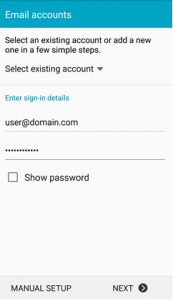
- The Mail Option will allow you to setup with POP3, IMAP or Microsoft Exchange ActiveSync. IMAP is strongly recommended, which allow user to sync & view their emails on multiple devices.

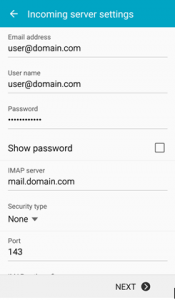
- For incoming server settings, may refer to the below screen-shot as example.
- Username : user@domain.com where it should be your email address.
- Password : your email password
- IMAP/POP3 server : mail.domain.com where domain.com should replace by your domain name
- Security type : None
- Server Port : 143 (IMAP) / 110 (POP3)
- Then select “Next.”
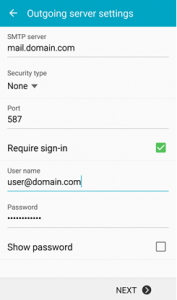
- For outgoing server settings, may refer to the below screen shot as example.
- Username : user@domain.com where it should be your email address.
- Password : your email password
- SMTP server : mail.domain.com where domain.com should replace by your domain name
- Security type : None
- Server Port : 587
- Then select “Next.”
- For account options, you may choose your preferable settings or leave it as default.

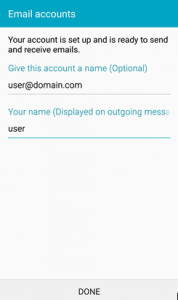
- The last step will be enter your name, which will be displaying in your email that you send, after that select “Done” to complete the setup.
Leave A Comment?